


Struggling to share your internet connection with other devices? Your laptop can act as a mobile hotspot, letting you connect phones, tablets, or even another computer. This guide shows you how to set it up on both Windows and macOS quickly and easily.
Keep reading—you’ll be up and running in no time!
Key Takeaways
- Your laptop can act as a mobile hotspot, sharing internet with devices like phones and tablets. It’s helpful when public Wi-Fi is unreliable or unavailable.
- On Windows, set up a hotspot through “Mobile Hotspot” in settings or Command Prompt. For macOS, use “Internet Sharing” under System Settings to share connections like Wi-Fi or Ethernet.
- Strong passwords are key for securing your network. Avoid simple ones like “password123.” Turn off the hotspot when not in use to prevent unauthorized access.
- Laptop hotspots may drain battery quickly and have limited range compared to routers. Plug into power and stay close to connected devices for better performance.
- Alternatives include smartphone hotspots, portable Wi-Fi routers, and USB tethering for stronger signals or larger areas needing coverage.
Benefits of Using Your Laptop as a Hotspot
Turning your laptop into a hotspot can make life easier. It lets you share your internet connection with other devices, like phones and tablets, without needing extra gadgets. This is helpful when public Wi-Fi fails or doesn’t feel secure.
A laptop’s larger battery also often lasts longer than a smartphone’s hotspot feature.
Using the mobile hotspot option on Windows 10 or macOS means fewer wires and more freedom to connect multiple devices at once. You can even manage settings, such as changing your network name or security key, directly from the operating system.
Plus, it’s handy for areas where routers aren’t available but laptops are easy to carry.
Requirements to Use Your Laptop as a Hotspot
You need a few basics to turn your laptop into a hotspot. A strong internet connection and proper hardware are key for smooth sharing.
Stable internet connection (Wi-Fi, Ethernet, or cellular data).
A strong internet connection is the backbone of any good hotspot. Wi-Fi works best, offering steady speeds for multiple devices. Ethernet provides an even more reliable option if available, reducing interference from other signals.
Cellular data acts as a backup, but it may depend on your location or signal strength.
Sluggish connections can lead to dropped video calls or slow-loading websites. Using a mobile hotspot with weak cellular coverage might not cut it. Make sure your network name and password are secure to avoid unauthorized access while sharing your internet connection across devices.
Built-in Wi-Fi adapter or external dongle.
Your laptop needs a Wi-Fi adapter to act as a hotspot. Most laptops have built-in adapters, which is super handy. If yours doesn’t, use an external dongle instead. These USB devices are small and easy to set up.
They let your system connect or share the internet through a Wi-Fi network.
An external adapter works best with older laptops or desktops without wireless support. Plug it into any available USB port, install drivers if needed, and you’re good to go! Having the right setup ensures smooth sharing of your internet connection to other devices like phones or tablets.
Next: Make sure your battery stays charged while using this feature!
Sufficient battery power or connection to a power source.
A hotspot drains your laptop battery quickly. Keeping it plugged into a power source can save you headaches later. If the battery dies mid-use, your internet sharing stops instantly.
Look at your battery percentage before setting up a mobile hotspot. Low-power mode might slow things down, so avoid using it if possible. A stable power supply keeps your connection strong and reliable for everyone connected to it.
Setting Up a Hotspot on Windows
Turning your Windows laptop into a hotspot is easier than you think, and with just a few clicks, you can share your internet connection like a pro.
Steps to Create a Hotspot in Windows 10/11


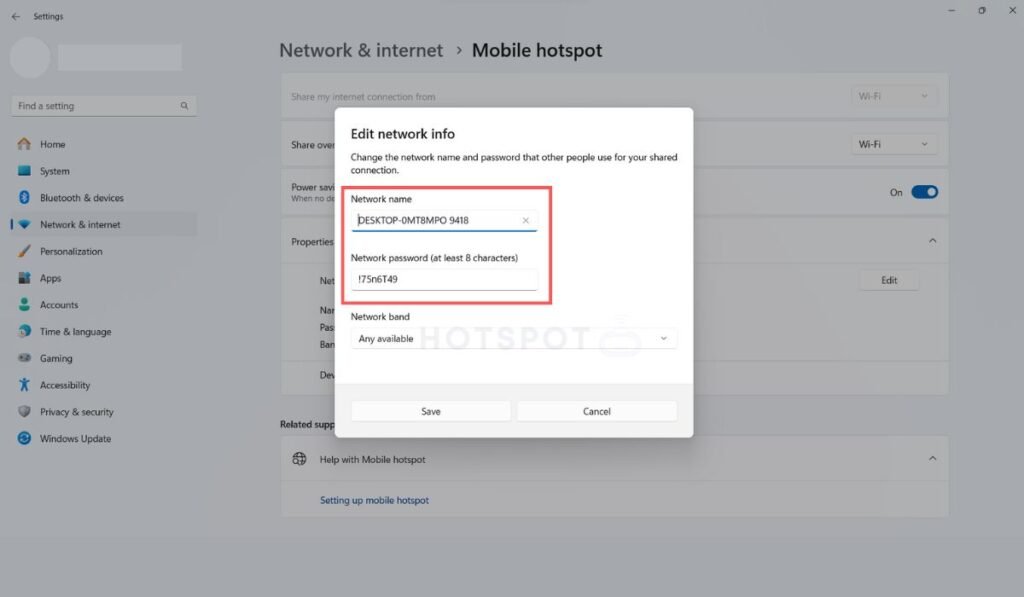
Click the Start menu, then open “Settings.” Choose “Network & Internet” and go to the “Mobile Hotspot” section. Toggle on “Share my internet connection with other devices.” Pick your internet source from the dropdown menu.
Hit “Edit” under network name settings to set a custom name and password for your hotspot. Save changes, ensuring security through a strong password. Once done, nearby devices can log in using this info via Wi-Fi connection.
Ready to share an Ethernet connection or try command prompt steps?
Sharing an Ethernet Connection
Sharing your Ethernet connection allows other devices to use your wired internet through Wi-Fi. To do this, connect your laptop to an Ethernet cable and open the “Network & Internet” settings in Windows 10 or 11.
Select “Mobile Hotspot.” Choose the option to share your connection via Wi-Fi and pick a network name and password.
Check that the “Share my internet connection from” dropdown shows Ethernet as the source. Turn on the hotspot toggle. Other devices can now connect using the details you set up!
Using Command Prompt to Set Up a Hotspot
To set up a hotspot using Command Prompt, open the Start menu. Type “cmd,” right-click Command Prompt, and select “Run as administrator.” Use the command:
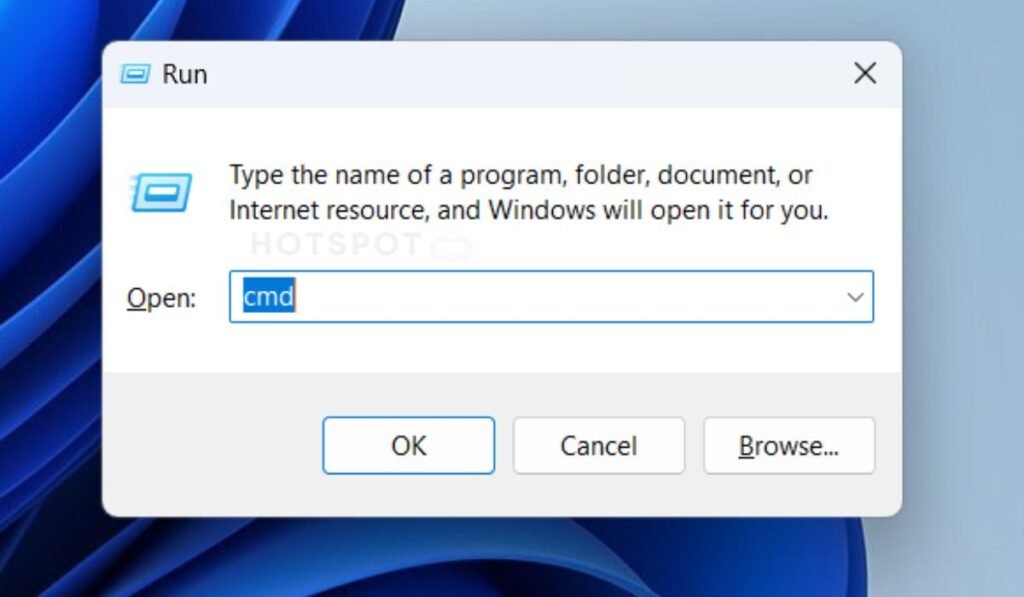
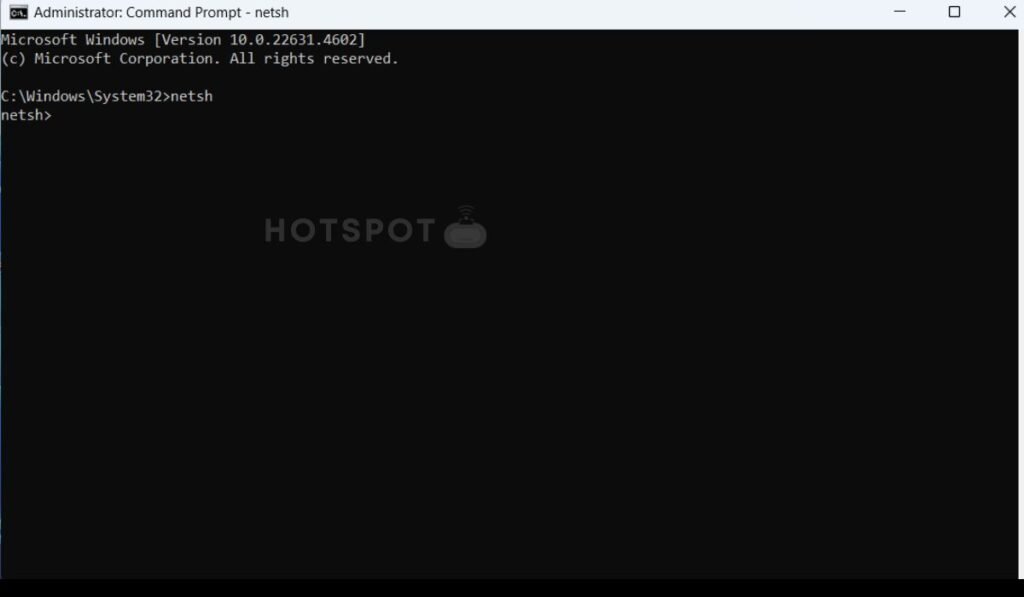
1. Type “netsh” and hit enter.
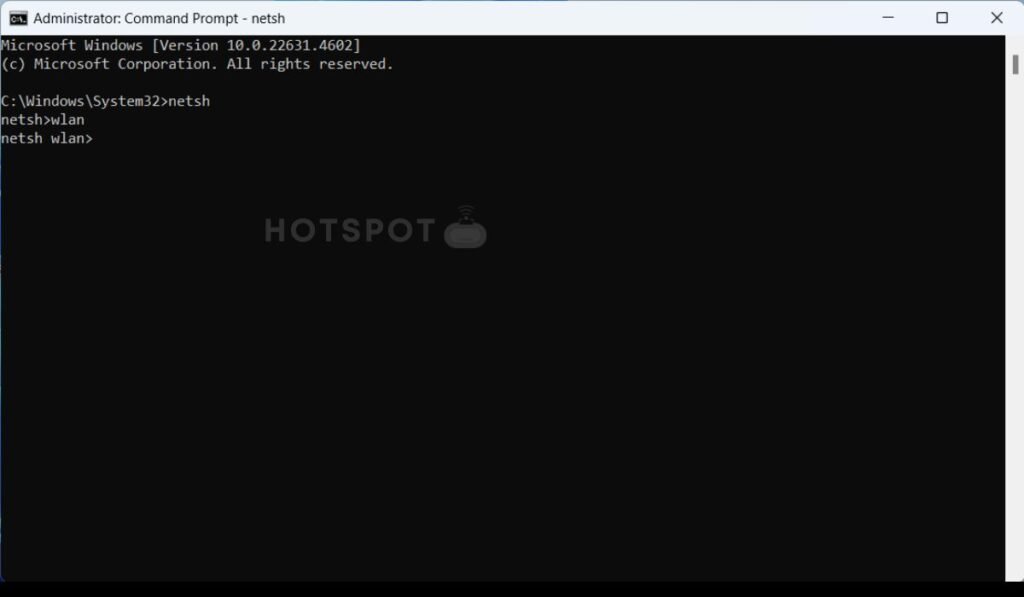
2. Type “wlan” and hit enter.
3. Now type “set hostednetwork ssid=HotspotDevice.net” and hit enter. (Note: Replace “HotspotDevice.net” with your desired network name.)
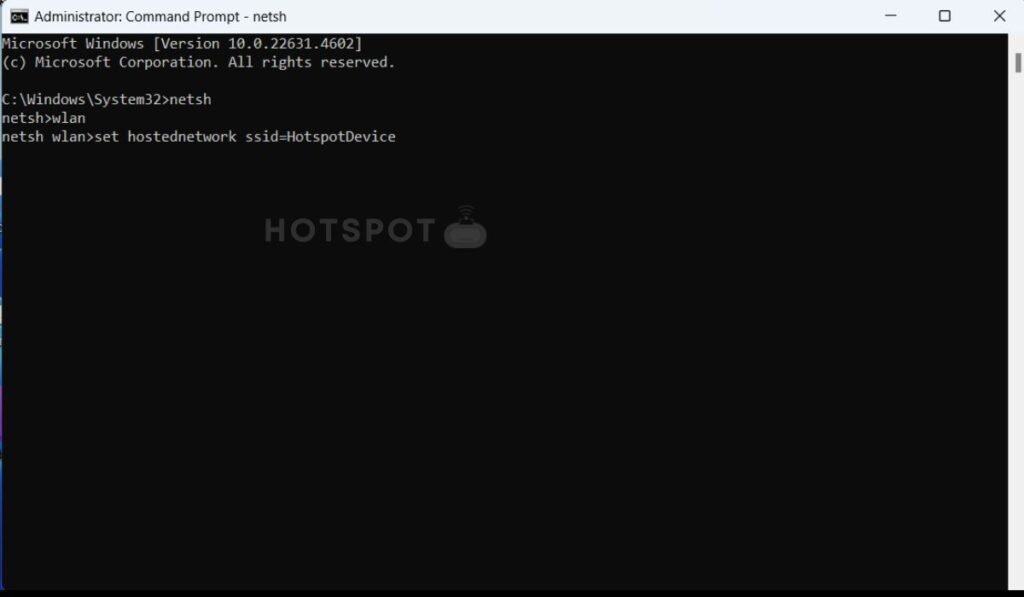
4. Finally type “set hostednetwork key=YourPassword” and hit enter to confirm. (Note: Use a strong password.)

Next, type `netsh wlan start hostednetwork` and press Enter to activate your mobile hotspot. Check your mobile hotspot settings in “Network & Internet” if needed. To stop it later, use this command: `netsh wlan stop hostednetwork`.
Keep power sources nearby if using on battery!
Setting Up a Hotspot on macOS
Setting up a hotspot on macOS is quick and straightforward. With just a few clicks, you can share your internet across devices without breaking a sweat.
Steps to Enable Internet Sharing
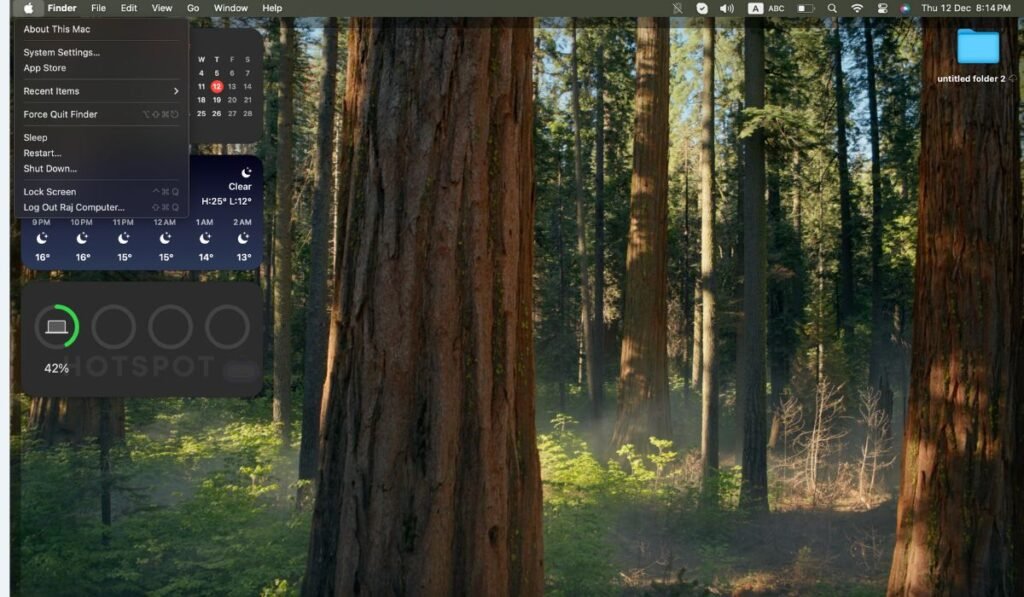
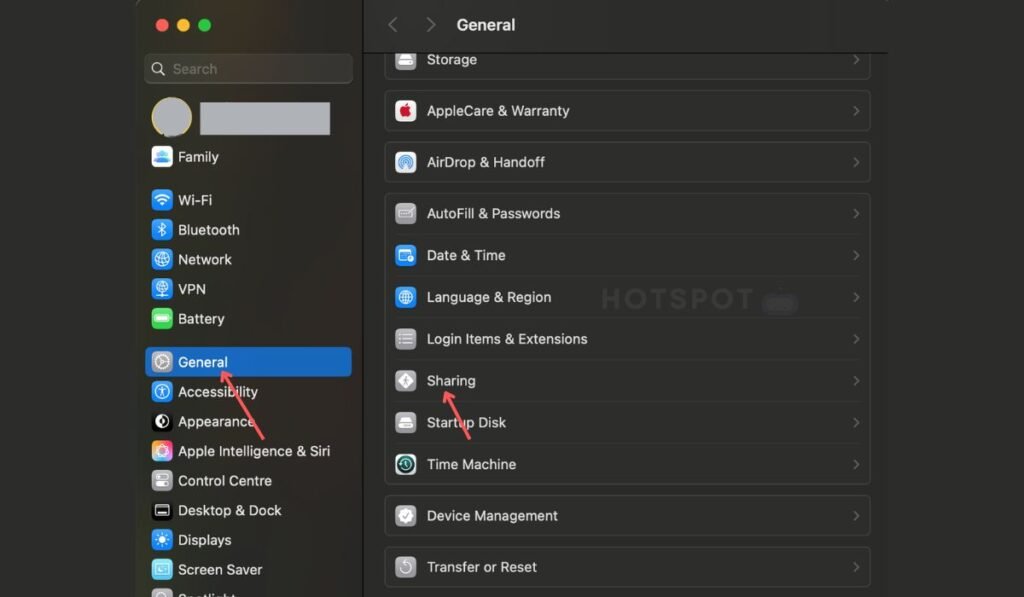
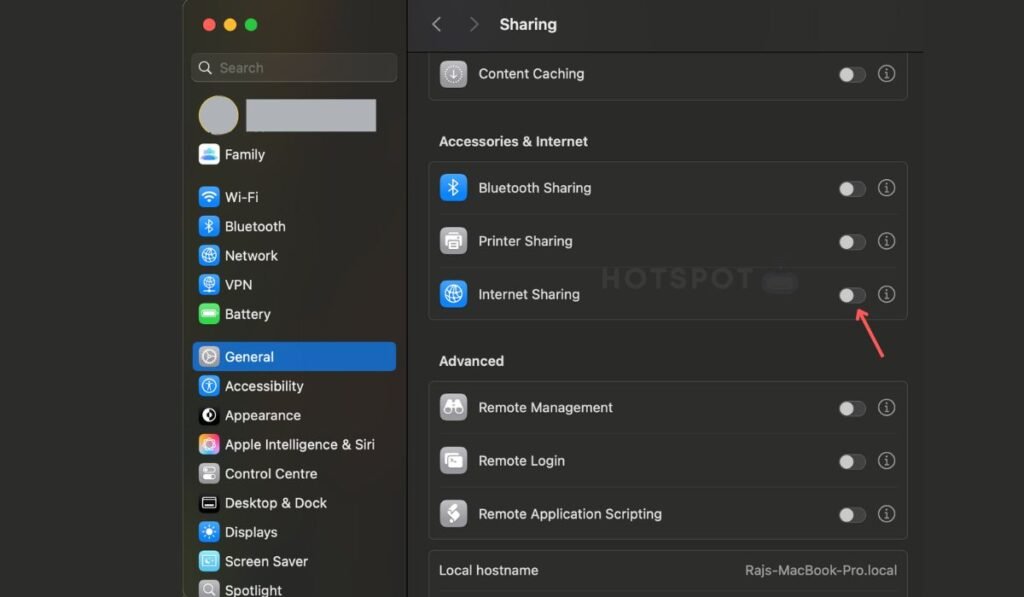
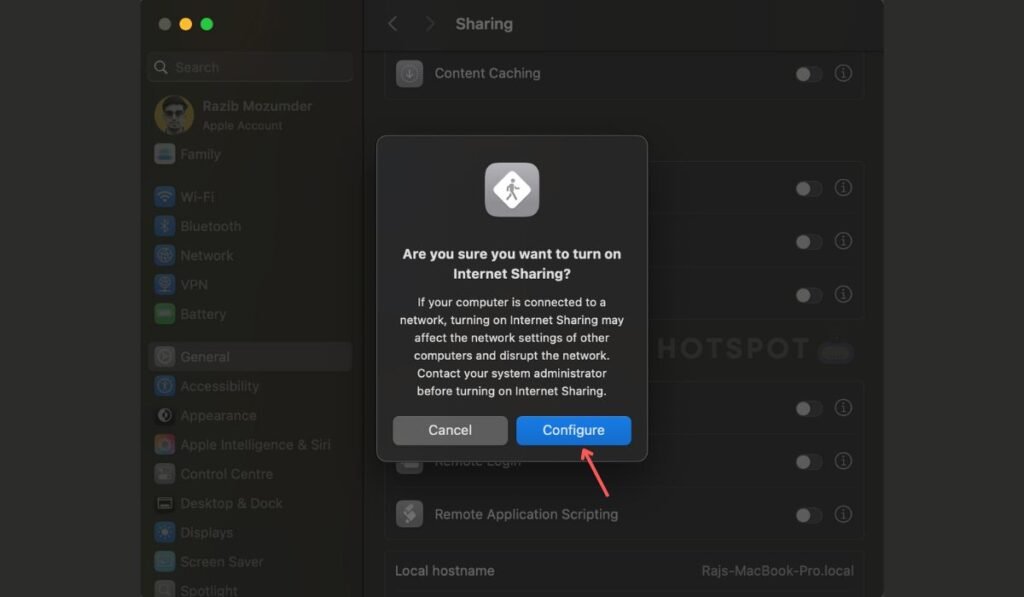
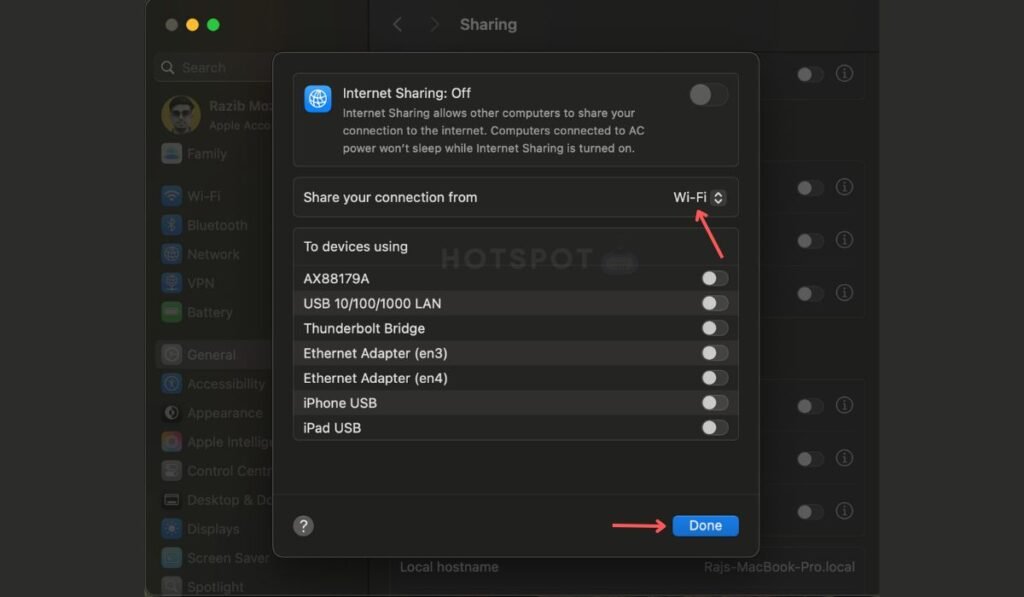
Open the “System Settings” on your Mac. Click “Sharing,” then select “Internet Sharing” from the left menu. Choose your source connection, such as Wi-Fi or Ethernet, in the dropdown.
Next, pick how you want to share—Wi-Fi is a common choice.
Tick the box next to “Internet Sharing” to turn it on. A pop-up will ask for confirmation; Click “Configar.” For extra security, choose “Wi-Fi Options” and set a password under Network Name settings.
This protects your personal hotspot from unwanted users while sharing your internet connection.
Sharing Your Ethernet Connection
To share your Ethernet connection, make sure your laptop is connected to a stable internet source via an Ethernet cable. Head to the “Network & Internet” settings on your Windows PC or macOS.
On Windows, activate “Mobile hotspot” and select Ethernet as the shared source in mobile hotspot settings. For macOS, open System Settings under Internet Sharing. Choose Ethernet as the input alongside Wi-Fi for sharing.
Set a network name and password for others to join securely. This prevents unwanted users from logging into your connection. If you’re on Windows 11, access these options through the taskbar or Start menu quickly without hassle.
Using a Third-Party App for Advanced Options
Some apps make managing mobile hotspot settings easier. Apps like Connectify let you share your internet connection with a click. They also allow custom network names and passwords.
Such tools often boost performance. For example, they may extend the hotspot range or prioritize certain devices. This helps when multiple users connect at once.
Securing Your Laptop Hotspot
Set a strong password for your mobile hotspot. Use at least eight characters, mixing letters, numbers, and symbols. Avoid simple options like “password123” or names tied to you. This step stops unwanted users from sneaking into your network & internet.
Switch off sharing when it’s not needed. Always log into the hotspot settings to check who’s connected. Block devices that seem suspicious. Update your laptop often to patch security gaps.
Now let’s tackle common hotspot issues next!
Troubleshooting Common Hotspot Issues
Hotspot acting up? Don’t sweat it—simple fixes can save the day.
Windows Hotspot Not Working
Issues with a mobile hotspot on Windows can stem from outdated drivers. Check the Wi-Fi adapter driver in Device Manager. Update it using your PC’s settings or download the latest version from the manufacturer’s site.
Restarting after updates often fixes glitches.
Sometimes, incorrect network & internet settings cause problems. Go to “Mobile Hotspot Settings” and confirm the network name and password are correct. Disable battery saver mode if active—it may restrict connection sharing to conserve power.
macOS Hotspot Issues
Hotspot issues on macOS can stem from the network name or mobile hotspot settings. Sometimes, the internet sharing option doesn’t activate properly. Restarting your Mac and toggling Internet Sharing might fix this hiccup.
A weak Wi-Fi adapter or poor internet connection may also cause trouble. Check for updates under System Preferences to keep your software current. If problems persist, try using a third-party app for advanced troubleshooting options.
General Tips
A stable connection is key. Use Ethernet or a strong Wi-Fi network for better hotspot performance. Weak signals lead to slower speeds and frequent drops in your internet sharing.
Keep the laptop plugged into a power source to avoid battery drain. Adjust mobile hotspot settings, like limiting devices connected, to prevent overloads. Change the network name and password often for added security against unwanted access.
Tips for Optimizing Hotspot Performance
Place your laptop close to connected devices. This reduces signal loss and keeps speeds steady. Avoid walls or thick objects that block Wi-Fi signals.
Switch off unused apps, browsers, and background programs. They hog bandwidth and slow your internet connection. Plug your laptop into a power source for stable performance during long use.
Limitations of Using a Laptop as a Hotspot
Using your laptop as a hotspot works, but it’s not perfect. It can drain your battery fast and may feel sluggish compared to other options.
Battery drain concerns.
Using your laptop as a mobile hotspot can quickly drain its battery. Hotspot functions demand constant use of the Wi-Fi adapter, which consumes power rapidly. If you’re sharing your internet connection while unplugged, monitor the battery percentage closely.
Connecting to a power source helps prevent sudden shutdowns. High brightness and running multiple programs worsen the drain too. Close unnecessary applications to save energy and improve performance during internet sharing.
Limited range compared to dedicated routers.
Laptop hotspots often lack the power of dedicated routers. Their built-in Wi-Fi adapters cover a smaller area, usually limited to one room or a short distance. Walls and furniture can weaken the signal even more.
Dedicated routers send stronger signals and work better over longer distances. A laptop hotspot works best for close-by devices in small spaces. For larger homes, using a smartphone hotspot or portable router might be more reliable.
Potentially slower speeds.
A laptop hotspot may not match the speed of a dedicated router. It shares your internet connection, which can slow down if many devices connect at once. This happens because laptops lack strong antennas and hardware built for heavy network use.
The type of internet connection also matters. Wi-Fi or cellular data often provides slower speeds than Ethernet connections. Using mobile hotspot settings might drain bandwidth faster, leaving less for streaming or gaming.
To avoid frustration, keep connected devices to a minimum and prioritize simple tasks like browsing or email over large downloads.
Alternatives to Laptop Hotspots
Sometimes, a laptop hotspot isn’t the best choice—explore other options to keep your devices connected effortlessly.
Using a smartphone hotspot.
A smartphone can act as your mobile hotspot. It shares your internet connection with other devices, like a laptop or tablet. This is handy if there’s no Wi-Fi nearby. Check the “mobile hotspot settings” on your phone to activate this feature.
Customize the “network name” and set a strong password for safety.
Your phone must have sufficient cellular data and battery power. USB tethering is another option for faster speeds while saving battery life. Most newer phones allow you to create and manage hotspots easily through their menu or even using a QR code for quick connections!
Portable Wi-Fi routers.
Portable Wi-Fi routers are small gadgets that create their own network. They let you share your internet connection with multiple devices, like laptops and smartphones. These routers work well for people traveling or in areas without stable Wi-Fi.
Most portable routers connect using cellular data, similar to a mobile hotspot. They often provide faster speeds and better range than a laptop hotspot. Many models include options to plug in a SIM card or use USB tethering for flexibility.
Keep them charged or plugged into power for uninterrupted internet sharing.
Tethering options.
Using a smartphone hotspot is one simple tethering option. Connect your phone to the laptop via Wi-Fi, Bluetooth, or USB cable. Most modern phones support this feature under “Mobile Hotspot” in settings.
It’s fast and easy but can drain battery quickly.
A portable Wi-Fi router offers another choice. These small devices create their own network using SIM cards or wired internet. They often last longer on battery than phones and support more connected devices at once.
FAQs
1. How can I use my laptop as a mobile hotspot?
You can share your internet connection through the mobile hotspot settings on both Windows and MacOS. This lets other devices connect to your network name like they would with Wi-Fi.
2. Where do I find the mobile hotspot settings on Windows?
Go to “Network & Internet” in your computer’s settings, then select “Mobile Hotspot.” From there, you can set up sharing for your internet connection.
3. Can I change the network name when using my laptop as a hotspot?
Yes, both Windows and MacOS allow you to customize the network name so others can easily recognize it when connecting.
4. Is it possible to watch tutorials about this online?
Absolutely! Websites like pcmag.com or even a YouTube channel often have step-by-step guides for setting up internet sharing on laptops without any hassle.


