


Hackers can break into your mobile hotspot and steal your data. A weak network makes it easy for them to exploit your connection. This guide will show you how to secure your mobile hotspot with simple steps.
Protect yourself now—keep reading!
Key Takeaways
- Use strong passwords with 12+ characters, mixing letters, numbers, and symbols. Avoid simple passwords like “123456” or birthdays.
- Enable WPA3 encryption for better security. It protects shared data on your hotspot from hackers.
- Turn off SSID broadcasting to hide your network name from others nearby.
- Limit connected devices and monitor them often to block unknown users quickly.
- Update device software and apps regularly to fix security flaws hackers may exploit.
What Is a Mobile Hotspot?
A mobile hotspot lets your device share its internet connection with others. It works like a mini router, creating a Wi-Fi network using cellular data.
You can connect laptops, tablets, or other devices to it for internet access. Many smartphones and portable hotspots support this feature.
How Hackers Exploit Mobile Hotspots
Hackers use fake mobile hotspots to trick users. These are called rogue Wi-Fi networks. They mimic real network names, making people connect by mistake. Once connected, hackers can steal passwords, credit card numbers, or other sensitive data.
Public spots like cafes and airports are common targets for these tricks.
Some hackers attack weak hotspot security. Weak or default passwords make this easy. Methods like brute force attacks crack simple passcodes in seconds. Others install malicious software through infected devices on the same network.
This spreads viruses and compromises safety fast—leaving your personal hotspot exposed without you knowing it happened.
10 Tips to Secure Your Mobile Hotspot
Protecting your mobile hotspot takes just a few steps—secure passwords, limit access, and use tools like VPNs to keep hackers out.
1. Enable Strong Passwords
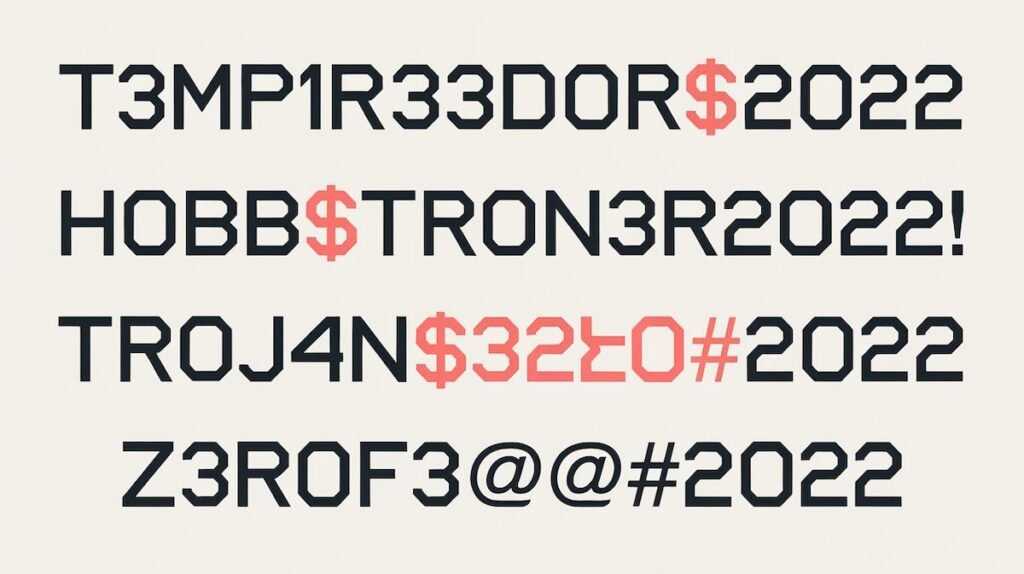
Use a password with at least 12 characters, including numbers, symbols, and uppercase letters. Avoid using common words like “password,” “123456,” or personal details such as birthdates.
Update your mobile hotspot password regularly to prevent unauthorized access. Use a reputable password manager to store and generate secure passwords easily.
2. Use WPA3 Encryption

Strong passwords help, but WPA3 encryption boosts security further. It is the latest standard for wireless networks, replacing outdated WPA2 encryption. It uses advanced data protection to stop hackers from accessing your mobile hotspot.
WPA3 ensures encrypted connections and protects sensitive data like login credentials and bank information. Enable it in your personal hotspot settings on Android or iOS devices. This provides a safer internet connection, even in public wi-fi spaces or crowded areas.
3. Turn Off SSID Broadcasting
Disable SSID broadcasting to make your mobile hotspot invisible. This hides the network name, so hackers cannot see it in their wi-fi connection list.
Users must manually type the network name to connect, adding an extra layer of security. Fewer visible networks reduce chances of unauthorized access or hijacking through public internet searches.
4. Change Default Network Names and Passwords
Hackers target default network names and passwords on mobile hotspots. Change the SSID to something unique, avoiding your name or personal details. Create a strong password with at least 12 characters, mixing numbers, symbols, lowercase, and uppercase letters.
Avoid using common words or patterns like “password123”. Update these settings directly in your hotspot’s admin panel via the browser. A unique network name makes it harder for attackers to identify and exploit your connection.
5. Limit the Number of Connected Devices
Fewer connected devices mean better security and speed. Set a device limit on your mobile hotspot to control access. Many smartphones let you specify the number of devices allowed at one time.
Too many connections can slow down your internet connection or expose sensitive data to risks. Only allow trusted mobile devices, laptops, or tablets connected. Disconnect unknown users immediately by monitoring your hotspot settings regularly.
6. Enable Two-Factor Authentication (2FA)
Protect your mobile hotspot by activating two-factor authentication (2FA). It adds an extra security layer beyond a password. Hackers need both your password and a verification code to access the connection.
Use apps like Google Authenticator or text-based codes for 2FA setup. Many modern devices support this feature. This method stops unauthorized users from accessing Wi-Fi networks, even if they know the primary password.
7. Use a VPN
Add a Virtual Private Network (VPN) for secure connections on your mobile hotspot. A VPN hides your IP address and encrypts online activities. This makes it hard for hackers to see sensitive data or track internet usage.
Reliable VPN apps like NordVPN, ExpressVPN, or Surfshark can protect personal hotspots. These tools shield access points while using public Wi-Fi or cellular networks. Use them during video streaming or transferring important files over the web.
8. Turn Off the Hotspot When Not in Use
Disable your mobile hotspot whenever there’s no active need for it. Hackers often exploit open hotspots to access sensitive data or gain control over devices.
Cutting off the hotspot reduces exposure, saving both cellular data and battery life. Unused wi-fi networks can act as easy targets—power down to avoid risks of unauthorized access or unwanted connections by strangers.
9. Monitor Connected Devices Regularly
Turn off your hotspot to stop unwanted access, but also check connected devices often. Use your mobile device settings or apps like Fing to see every active connection.
Disconnect unknown devices immediately. Set a data cap to track usage and spot unusual activity quickly. Limit wi-fi network access to trusted individuals only.
10. Keep Your Device and Software Updated
Outdated software leaves your device vulnerable. Hackers use old security flaws to access wi-fi networks and steal sensitive data.
Install all updates for your operating system and apps regularly. Security patches fix bugs that protect personal hotspot and mobile data connections from threats like rainbow tables or malware.
Advanced Security Tips for Tech-Savvy Users
Take extra steps to secure your hotspot. Use advanced settings like firewalls or device filters for added protection.
Setting up MAC address filtering.
MAC address filtering blocks unapproved devices from using your wi-fi hotspot. Each device has a unique MAC address, acting like its ID. Enable this feature in your router or hotspot settings to allow only approved devices.
Add the MAC addresses of your phone, laptop, or tablet manually. Reject others automatically. This step stops strangers from accessing your internet connection without permission. Make sure you update this list if you switch devices often for better mobile hotspot security.
Using firewall applications for hotspots.
Firewall apps block unwanted access to your mobile hotspot. They filter data, ensuring only trusted devices or apps use the connection.
Use reliable firewall applications like NetGuard or NoRoot Firewall. These tools monitor traffic and stop suspicious activity instantly.
Implementing network segmentation.
Separate your mobile hotspot into smaller, secure networks. Create a main network for personal use and a guest network for others. This helps protect sensitive data if one part gets breached.
Use tools like firewall applications to enforce rules between segments. Limit access to essential services only. Ready for the next step?
Common Mistakes to Avoid
Many users make simple errors that put their mobile hotspot at risk—learn how to avoid them here.
Using simple or guessable passwords.
Hackers break into hotspots by guessing weak passwords. Words like “password123” or “111111” make this easy for them. They try common options and gain access fast.
Strong password complexity stops this risk. Create a secure connection with at least 12 characters, mixing letters, numbers, and symbols. Avoid personal details like names or birthdays.
Ignoring firmware updates.
Outdated firmware weakens mobile hotspot security. Hackers exploit unpatched flaws to access your wi-fi network or steal sensitive data. Staying updated with firmware fixes bugs and improves security features.
Many devices allow automatic updates for convenience. Check settings on your cell phone, Android device, or personal hotspot to enable this option. Secure connections depend on the latest software versions.
Allowing unrestricted access to your hotspot.
Leaving your mobile hotspot open invites hackers. It lets anyone connect without permission, risking sensitive data and increased data usage. Unsecured personal hotspots also expose devices to malware or unwanted access.
Protect your network by using password complexity and enabling WPA3 encryption. Limit connected devices to stop strangers from joining. Always monitor who accesses your wi-fi network for better security.
How to Spot If Your Hotspot Has Been Hacked
Your hotspot might be hacked if strange devices connect or your data usage suddenly spikes. Act fast to secure your mobile internet and protect sensitive data.
Signs of unauthorized access
Unrecognized devices might show up as connected to your mobile hotspot. Check the list of connected devices in your settings. Any unknown device could mean someone is using your internet connection.
Data usage may spike without reason. If you notice high usage but didn’t stream videos or share large files, it could point to unauthorized access. Monitor data caps to spot unusual activity quickly.
Immediate steps to take if you suspect hacking.
Spot unusual devices on your hotspot. Disconnect them immediately. Change your network name and use a strong password for extra security.
Enable WPA3 encryption. Run antivirus software to scan for threats. Turn off your mobile hotspot right away if unsure about its safety.
Tools and Apps to Enhance Hotspot Security
Use security apps to protect your hotspot and monitor devices. Many smartphones also have built-in features to keep connections safe.
Overview of hotspot security apps.
Apps like NetSpot and Fing boost your mobile hotspot security. NetSpot analyzes your wi-fi network and spots weak areas, helping you secure your connection. Fing detects devices on your network, flags unknown ones, and alerts you to suspicious activity.
These tools protect sensitive data by showing real-time details about connected devices. Both apps work with Android phones and home internet setups.
Built-in device features to secure connections.
Modern devices include features that boost mobile hotspot security. WPA3 encryption protects your internet connection by securing shared data. It’s stronger than older methods like WPA2 encryption.
Devices often allow MAC address filtering to block unknown users from joining your wi-fi network. Some also monitor connected devices and alert you of unusual access, helping protect sensitive data during browsing or video streaming.
Use these tools for a secure connection and safer wireless internet use.
FAQs
1. How can I secure my mobile hotspot?
Use a strong password, enable WPA2 or WPA3 encryption, and avoid using public Wi-Fi for sensitive data. Always keep security updates installed on your device.
2. Why is a VPN important when using a mobile hotspot?
A VPN (Virtual Private Network) encrypts your internet connection, protecting sensitive data from hackers while you access the internet over wireless hotspots.
3. What should I know about network names and passwords?
Choose a unique network name that doesn’t reveal personal details. Use password complexity—long combinations of letters, numbers, and symbols—for better protection.
4. Can antivirus software help with mobile hotspot security?
Yes, antivirus software adds an extra layer of protection by detecting threats to your home network or private hotspot while blocking malicious activity.
5. Should I disable guest networks on my personal hotspot?
Yes! Guest networks can weaken mobile security by allowing unauthorized users onto your wi-fi network—disable them for stronger protection.
6. Are there other ways to improve mobile hotspot safety?
Limit Bluetooth connections, use port filtering if available, monitor data usage regularly through browsers like Google Chrome or DSL tools—and avoid sharing cellular data unnecessarily during international roaming sessions!


