


Struggling with weak Wi-Fi signals at home? A spotty connection can be a real headache, especially when your mobile hotspot doesn’t reach all the places you need it. Walls, furniture, and even other electronics can mess up your signal strength.
Did you know most basic hotspots have limited range due to their hardware and environmental factors? This means they often can’t cover an entire house without some help.
In this article, you’ll learn simple ways to extend your hotspot range. From placement tips to gadgets that boost performance—it’s all here. Keep reading for easy solutions!
Key Takeaways
- Position your hotspot in a central, open space away from walls and electronics like microwaves. Elevating the device improves signal strength.
- Use gadgets like Wi-Fi extenders or external antennas to boost range. Upgrade outdated hotspots for better performance and coverage.
- DIY methods, such as aluminum foil reflectors or repurposing old routers, can improve signal without extra costs.
- Switching frequency bands (2.4 GHz vs 5 GHz) helps manage speed and range based on specific needs and crowded network conditions.
- Maintaining your hotspot through firmware updates, monitoring data usage, and regular restarts ensures steady performance over time.
Understanding Your Hotspot’s Range
Your hotspot’s range depends on more than just its signal bars. Factors like hardware, walls, and other devices can shrink or boost how far your connection reaches.
What determines a hotspot’s range?
Signal strength sets the stage. A weaker signal from a cell tower will limit how far your wifi hotspot reaches. Device hardware matters too—older phones or tablets might lack strong antennas, cutting connection range short.
Newer gadgets often handle signals better.
Walls are troublemakers. Thick concrete can block signals, like a sponge soaking up water. Other devices also stir up interference—a microwave or wireless repeater can mess with your hotspot’s reach.
Even weather can play games, reducing performance on rainy days.
A good signal is half the battle; placement and conditions do the rest.
Limitations of standard hotspots.
Standard hotspots often struggle with weak signal strength. Walls, doors, and furniture block the connection. Devices far from the hotspot get slower internet speeds or dropped connections.
These hotspots also can’t handle too many devices at once. Overloading leads to laggy performance and disruptions. Hardware limits may prevent expanding their range without extra tools.
Recognizing these issues helps you pick smart ways to boost your wifi signal.
Importance of identifying the current range before extending it.
Knowing your current hotspot range helps you fix weak spots. Without this, extending the wifi signal becomes guesswork. For example, walls, furniture, or interference from other devices can weaken the signal strength.
Use tools to measure the wi-fi network coverage. Check where speeds drop or connections fail. This step saves money and effort by targeting problem areas first.
Ways to Extend Your Hotspot Range
Getting a better hotspot range can feel like chasing Wi-Fi ghosts, but it’s simpler than you think. Small changes to your setup or adding gadgets can make a noticeable difference.
1. Position Your Hotspot Strategically
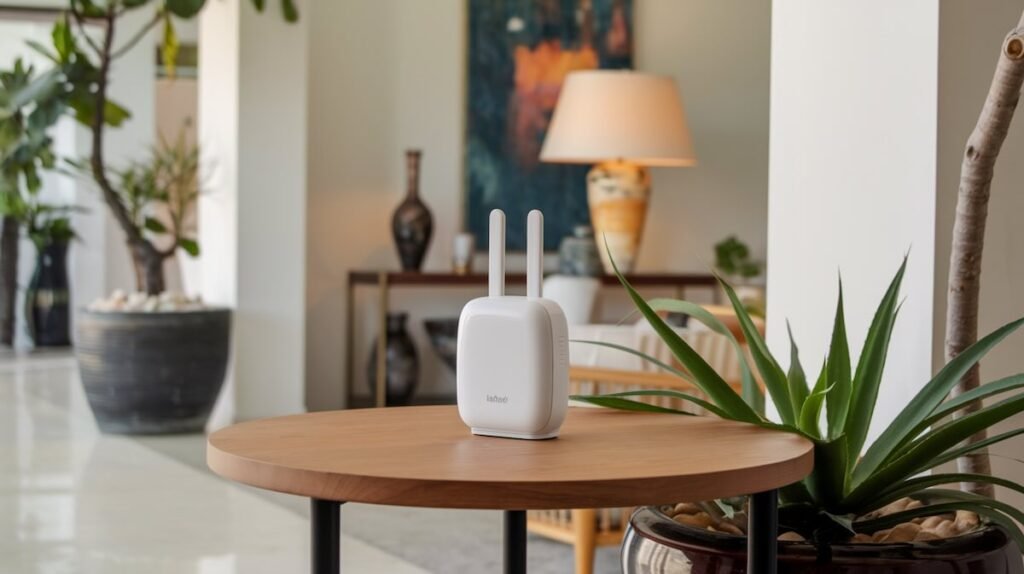
Place your mobile hotspot in an open area. Avoid walls, thick furniture, or metal objects that can block the wifi signal. A central spot works best if you’re covering multiple rooms.
Keep it away from devices like microwaves and cordless phones. These cause interference and weaken the wireless connection. Elevating the device, like putting it on a shelf, improves signal strength too.
2. Use an External Antenna

Attach an external antenna to your hotspot device. It boosts signal strength by capturing weaker signals from distant cell towers. Many mobile hotspots have ports for antennas, making setup simple.
Choose a high-gain antenna for better performance. Directional antennas focus on specific areas, while omnidirectional ones pull signals from all directions. Ensure the antenna is compatible with your device for the best results.
3. Invest in a Wi-Fi Range Extender or Repeater

A Wi-Fi range extender or repeater boosts your hotspot’s signal. It catches the weak signal and re-broadcasts it, covering more space. This tool works well in large homes or areas with thick walls where signals drop.
Many are easy to set up; just plug them in and sync them with your internet connection.
Choose one compatible with your mobile hotspot device for better results. Some models even support both 2.4 GHz and 5 GHz frequency bands, helping avoid interference. These devices can reduce dropped calls and improve speeds on cellular devices like iPads, laptops, and cell phones throughout your home.
4. Upgrade Your Hotspot Device
Sometimes older devices struggle to handle stronger or faster signals. Upgrading your mobile hotspot can improve its performance and range. Newer models often support better signal strength, dual-band frequencies, and faster data speeds.
Look for a device compatible with the latest network technologies like 5G. Brands also offer advanced personal hotspots that pair well with Wi-Fi extenders or boosters for broader coverage.
Investing in an upgrade can reduce dropped connections and slow speeds caused by outdated hardware.
5. Use a Signal Booster

A signal booster can improve your mobile hotspot’s range. It grabs weak cell signals, strengthens them, and rebroadcasts them to cover a wider area. This tool works well in houses with thick walls or areas with spotty reception.
Choose a cell phone signal booster compatible with your carrier. Look for one that supports 4G LTE or 5G for better speeds. Place it near the weakest connection spot but within reach of some signal.
This setup helps you get more stable Wi-Fi without much hassle.
6. Switch to a Different Frequency Band
Switching frequency bands can improve your wifi signal. Most hotspots use 2.4 GHz or 5 GHz bands. The 2.4 GHz band covers more distance but is slower and crowded with other devices like microwaves and baby monitors.
The 5 GHz band provides faster speeds but has a shorter range.
Check if your hotspot supports dual-band options. Switching to the less congested one can strengthen your connection, especially in busy neighborhoods. Use device settings to change bands manually, or let it auto-select based on performance needs.
7. Use a Hotspot-Compatible Router
A hotspot-compatible router can transform your mobile hotspot into a stronger Wi-Fi network. It connects to your hotspot device and spreads the signal further, covering more areas in your home.
This works well for homes with thick walls or multiple floors where signals often struggle.
Choose a router designed for mobile hotspots, ensuring it supports both 2.4 GHz and 5 GHz frequency bands. Some routers even have Ethernet ports if you want wired connections, adding versatility to your setup.
Investing in such a router improves signal strength, reduces dead zones, and boosts device connectivity effortlessly.
DIY Methods to Boost Hotspot Range
Sometimes, simple tricks can make a big difference in your hotspot’s range. You don’t need fancy gadgets—just some creativity and a bit of elbow grease.
Create a Homemade Wi-Fi Reflector
Grab some aluminum foil and cardboard. Cut the cardboard into a circle or square shape. Cover one side with foil, making it smooth and shiny to reflect signals. Place this reflector behind your mobile hotspot device, with the foil facing the room.
This DIY hack focuses your Wi-Fi signal toward a specific area instead of spreading it everywhere. It’s cheap, quick, and can boost signal strength significantly without buying extra tools like range extenders or boosters.
Make sure to test different angles for the best results!
Adjust Device Settings
Tweak your mobile hotspot settings to improve its range. Switch the frequency band from 2.4 GHz to 5 GHz, or vice versa, depending on your needs. The 2.4 GHz band travels farther but is slower, while the 5 GHz band offers faster speeds with a shorter reach.
Turn off features you don’t use that may drain signal strength, like Bluetooth or background apps. Adjust power settings for maximum performance if available in your device menu.
Check signal strength bars and move until they show stronger levels before settling down to stream or upload files efficiently.
Use an Old Router as an Access Point
An old router can give your hotspot range a boost. Connect it to your mobile hotspot using an Ethernet cable or, in some cases, wirelessly. Change its settings to “Access Point” mode, and it will spread your wifi signal further throughout the house.
Place this router halfway between your main device and the area with weak coverage. This method is budget-friendly and reduces dead zones. Pairing this setup with a Wi-Fi extender boosts results even more!
Troubleshooting Common Hotspot Issues
Hotspots can be tricky, and problems pop up now and then. Spotting the root cause early saves time and keeps your connection steady.
Overheating Hotspot Devices
Overheating can cause your mobile hotspot to slow down, drop connections, or even shut off. Poor ventilation and long usage are common culprits. Placing the device on a flat, cool surface helps it stay cooler.
Avoid covering it with objects like books or cloth.
Excess heat may also come from weak signal strength forcing more power use. A signal booster can reduce this strain by amplifying reception. If overheating persists, try restarting the hotspot after heavy use or using it in short bursts instead of continuous operation.
Signal Interference
Signal interference can mess with your hotspot’s performance. Thick walls, floors, and large appliances like refrigerators block the wifi signal. Devices like baby monitors, microwaves, or cordless phones also create noise that weakens your connection.
Even too many nearby Wi-Fi networks can cause overlapping signals.
Switching to a 5 GHz frequency band reduces clashes since it has less traffic than 2.4 GHz. Placing your mobile hotspot away from metal objects or electronic devices helps too. A simple move could make all the difference in boosting signal strength and improving speeds!
Low Data Speeds
Low data speeds can ruin your hotspot experience. Thick walls, furniture, or even microwave ovens may block your wifi signal. Too many devices using the same network can also slow things down fast.
Your mobile hotspot might struggle if it’s far from a strong cell signal tower.
Switching to the 5 GHz frequency band could increase speed but at a shorter range. Upgrading to a Wi-Fi extender or repeater might help balance both speed and coverage. Don’t ignore overheating—hotspot devices work slower when they heat up too much!
When to Consider Alternative Solutions
Sometimes, improving your hotspot isn’t enough—you might need a bigger change to get the connection you want.
Switching to a Home Wi-Fi Network
Switching to a home Wi-Fi network can feel like moving from a bicycle to a motorcycle. It’s a solid choice for consistent, high-speed internet. But it’s not always the best fit for everyone. Compare the differences between a home Wi-Fi network and a mobile hotspot below.
| Feature | Home Wi-Fi Network | Mobile Hotspot |
|---|---|---|
| Speed | Generally faster, up to 1 Gbps in many areas. | Often slower, averaging 15-50 Mbps. |
| Data Limits | Unlimited plans available with most providers. | Limited data caps; speeds can throttle after usage. |
| Reliability | Stable connection, great for large households. | Prone to drops, especially in poor signal zones. |
| Cost | Monthly costs range from $30-$100, equipment fees may apply. | Often cheaper overall but data overages can add up. |
| Portability | Stationary, fixed to your home location. | Highly portable, works anywhere within mobile network reach. |
| Setup | Needs a technician or self-install kit; more complex. | Plug-and-play, minimal setup required. |
| Devices Supported | Handles dozens of devices easily without lag. | Limited to 5-10 devices before performance drops. |
| Latency | Lower latency, better for gaming and streaming. | Higher latency, can cause delays in real-time activities. |
Upgrading Your Internet Plan
Sometimes, mobile hotspots struggle with speed or reach. Upgrading your internet plan can fix data caps and boost signal strength. A higher-tier plan often comes with faster speeds and more reliable cell signal for your hotspot.
Check the fine print of plans to find one suited for heavy use. Many providers offer hotspot-friendly options. This switch may cost more upfront but pays off in long-term connectivity improvements.
Using a Mesh Wi-Fi System
Upgrading to a mesh Wi-Fi system can make a big difference. Unlike single hotspot devices, it uses multiple units to spread the wifi signal across your home. Each unit acts as a small router, creating strong coverage in every room.
Walls and interference don’t affect it as much. You’ll experience fewer dead zones, even in large homes. Mesh systems can also manage more devices than standard mobile hotspots without slowing down speeds, making them perfect for busy households or work setups.
Maintenance Tips for Consistent Hotspot Performance
Keep your hotspot running smoothly with a little care. Small tweaks, like checking updates or restarting the device, can work wonders for signal strength.
Keep your hotspot firmware updated.
Outdated firmware can slow down your mobile hotspot. Updates often fix bugs, improve signal strength, and enhance security. For instance, newer versions may better handle Wi-Fi interference or optimize speed.
Manufacturers release these updates to keep devices running smoothly.
Check for updates in your hotspot settings regularly. It usually takes just a few minutes to install them. If you’re using a wifi extender or other tools with the hotspot, updated firmware ensures everything works harmoniously together.
Next up: monitoring data usage and keeping an eye on your signal’s health!
Regularly monitor data usage and signal strength.
Check your hotspot’s signal strength often. Weak signals can mean slow internet speeds. Move the device to a spot with fewer obstacles, like walls or large furniture, for better performance.
Keep it near windows if possible.
Track data usage regularly to avoid overage fees. Many mobile hotspots or apps show how much data is left in your plan. Use this feature to prevent unexpected slowdowns caused by reaching limits.
Restart your hotspot device periodically.
Power-cycling your mobile hotspot helps maintain a strong Wi-Fi signal. It clears minor software glitches and refreshes the device’s connection to nearby cell towers.
A simple restart also prevents overheating, which can slow down data speeds. Doing this once a week keeps your hotspot performing at its peak without breaking a sweat.
FAQs
1. How can I extend my mobile hotspot range at home?
You can improve your mobile hotspot’s range by using signal boosters or a WiFi extender to strengthen the WiFi signal across your home. Placing the device in an open area also helps.
2. Does a weak cell signal affect my hotspot’s performance?
Yes, poor cell signals directly impact your hotspot’s speed and reliability. Try moving closer to a window or higher floors for better reception.
3. Can I boost my Apple iPhone’s hotspot range?
Absolutely! Adjust settings like the slider for maximum compatibility on your Apple iPhone, and consider connecting it to a strong WiFi network or adding a WiFi extender.
4. Are there any terms of use restrictions when boosting hotspots?
Some providers may limit how you use their service with boosters or extenders. Check their terms of use before making changes to avoid issues with your plan.


