


Using public Wi-Fi can feel convenient, but it’s risky business. Cyber criminals often use these networks to steal sensitive information like passwords or credit card numbers. This article will explain common threats and teach you simple ways to protect yourself while staying connected.
Stay safe, and keep reading!
Key Takeaways
- Public Wi-Fi networks, especially open ones without passwords, are highly vulnerable to hackers. Risks include data theft, malware attacks, and fake hotspots (like Evil Twin).
- Use tools like VPNs (e.g., ExpressVPN or ProtonVPN), antivirus software (Norton or Bitdefender), and secure browsers (Brave or Firefox) to protect your data on public networks.
- Always verify the network name with staff before connecting. Avoid suspicious names like “Free Wi-Fi 123” and networks with no password protection.
- Disable features like automatic Wi-Fi connections and file sharing/Airdrop to prevent unauthorized access by cybercriminals.
- Stick to HTTPS websites while browsing on public Wi-Fi for encrypted connections that better protect sensitive information like passwords or credit card numbers.
What Is Public Wi-Fi?
Public Wi-Fi is free internet offered in public spaces like cafes, airports, and malls. These networks can feel handy but often lack strong security shields, making them risky to use.
There are two types of these networks. Open networks need no password and offer the least secure connection. Secured networks require a password and provide slightly better safety but can still be risky for sensitive information.
Types of Public WiFi
Public Wi-Fi networks come in two main types. Each has different levels of security and risks to consider.
- Open Networks: These don’t need a password to connect. They are the least secure because anyone can join, including cyber criminals. Hackers can easily intercept data like passwords or personal details on these networks.
- Secured Networks: These need a password for access. While they offer slightly better protection, they are not foolproof. Bad actors may still find ways to exploit vulnerabilities if the encryption is weak or outdated.
Common Risks of Using Public Wi-Fi
Using public Wi-Fi can open doors to hidden dangers. Hackers may exploit weak connections, risking your private information and device security.
a) Man-in-the-Middle (MITM) Attacks
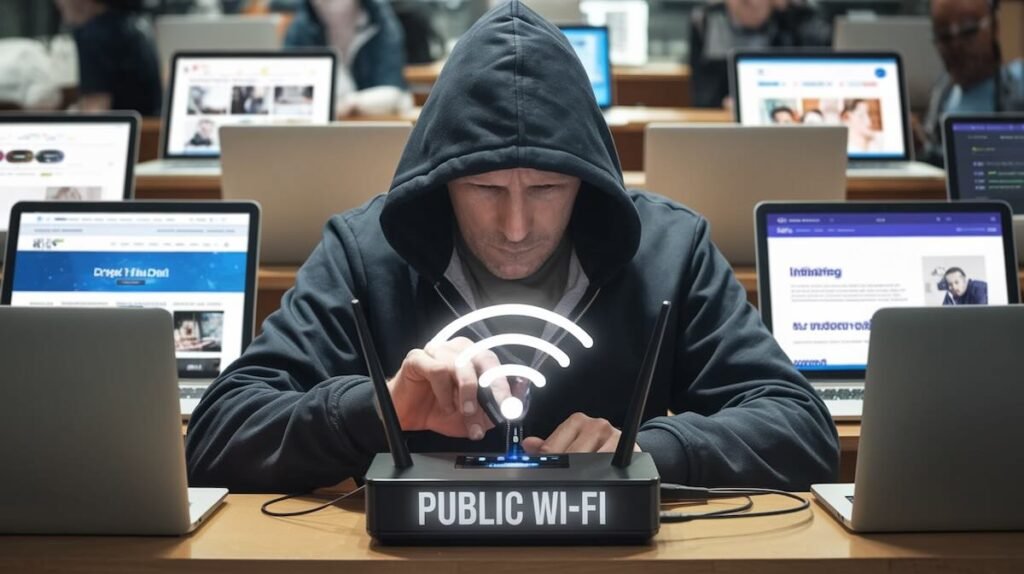
Cybercriminals often use Man-in-the-Middle (MITM) attacks to intercept your data. They sneak between you and the Wi-Fi network, tricking you into thinking you’re on a secure connection.
They can steal login details, passwords, or personal data like social security numbers.
An unsecured public Wi-Fi hotspot is a prime target for such attacks. Bad actors may even alter messages or redirect you to fake websites that look real. This type of threat underscores the need for tools like Virtual Private Networks (VPNs) and encrypted connections for online safety.
“Your information is only as safe as your connection.”
b) Unsecured Connections
Unsecured connections on public Wi-Fi can expose your private data. These networks lack encryption, making it easy for bad actors to intercept information. Hackers can steal login credentials, credit card numbers, or other sensitive details while you browse.
Using such connections puts financial transactions and personal accounts at risk. Without protection like a VPN or HTTPS websites, online threats grow fast. This opens the door to attacks like MITM and packet sniffing, leading right into malware distribution risks.
c) Malware Distribution
Hackers use public Wi-Fi to spread malicious software, like ransomware or spyware. Clicking on a fake pop-up ad or downloading files from unsafe websites can infect your device. Cyber criminals trick users through phishing emails or fake app updates.
These attacks can steal sensitive information, such as Social Security numbers or login credentials. Always have antivirus protection and keep your operating systems updated. Move with caution when using unsecured networks, and think twice before clicking suspicious links.
d) Fake Wi-Fi Hotspots (Evil Twin Attacks)

Cybercriminals set up fake Wi-Fi hotspots that look like real ones. These are called Evil Twin attacks. The network name might mimic a legitimate public option, such as “CoffeeShop_WiFi” or “Airport_FreeWiFi.” People connect without suspecting danger.
Once connected, fraudsters can steal sensitive information like passwords and credit card details. They may even track your online activities or install malware on your device. Avoid using suspicious networks and verify access points before connecting.
e) Data Snooping and Packet Sniffing
Hackers use packet sniffing to capture data traveling through public networks. This lets them see sensitive information like passwords, credit card numbers, or email details. Public Wi-Fi without strong encryption makes this even easier for bad actors.
Data snooping involves stealing private data while it’s unprotected. Cybercriminals target people checking banking apps or making online purchases on unsecured connections. Always avoid inputting personal details on questionable Wi-Fi hotspots to reduce risks.
Using a VPN encrypts your web traffic, keeping snoopers in the dark about your activities.
f) Session Hijacking
Session hijacking occurs when bad actors steal your active internet session. They exploit weak connections to take control of your online accounts. Cyber criminals use this method to access sensitive information, like email logins or banking details.
An attacker can intercept unencrypted data on public networks. Tools like packet sniffers make this even easier for them. Using a virtual private network (VPN) helps encrypt your connection, reducing risks of account takeovers and identity theft.
Signs of an Unsafe Public Wi-Fi Connection
Not all Wi-Fi networks are safe, and some can be traps set by hackers. Watch out for anything that feels off, like strange network names or sudden connection issues.
1. No password protection.
Public Wi-Fi without a password is an open door for cyber criminals. These networks lack encryption, making your online activities easy to track. Hackers can intercept data like emails, credit card details, or social security numbers.
It’s like shouting sensitive information in a crowded room.
Bad actors often set up fake hotspots with no passwords to trick users. Connecting to these traps risks exposing financial transactions or personal information. Always stay cautious on public networks and use secure browsing tools like VPNs for added protection.
2. Network name looks suspicious
A strange network name like “Free Wi-Fi 123” can be a red flag. Cyber criminals often set up fake hotspots with generic or tempting names to trap users. These networks may look harmless but could steal sensitive information like passwords or financial details.
Always confirm the network name with staff at a café, airport, or hotel before connecting. A fake Wi-Fi hotspot might allow bad actors to watch your online activity. Verify all connections; don’t take risks on public networks without checking their legitimacy first!
3. Unusual pop-ups requiring personal details.
These networks may also trigger unusual pop-ups. Pop-ups asking for personal details, like social security numbers or payment info, can signal danger. Cyber criminals use these to trick users into sharing private data.
Always avoid entering sensitive information through such pop-ups. They often lead to phishing attacks or identity theft. Use antivirus software and a reliable browser with content filtering to block suspicious windows automatically.
4. Slow performance or unexpected disconnections.
Public Wi-Fi can slow down or disconnect often. Too many users on the same network cause congestion. Cyber criminals may also intercept data, adding delays to connections. These interruptions leave your device exposed to online threats like hacking or malware.
Unsecured networks can worsen this issue. A weak signal from a hotspot increases disconnection chances. Fake hotspots set up by bad actors may behave similarly, pretending to offer free internet but failing in performance.
Always secure your connection with tools like a virtual private network (VPN) for better speed and safety.
How To Stay Safe on Public Wi-Fi
Public Wi-Fi may feel like a lifesaver, but it can hide dangers. Simple steps can keep your data safe and protect you from cybercriminals.
1. Use a VPN (Virtual Private Network)
A VPN creates a secure connection between your device and the internet. It encrypts your data, hiding it from cyber criminals on public networks like free Wi-Fi hotspots. Bad actors can no longer snoop on what you do online or steal sensitive information, such as passwords or financial details.
Many VPN services are available, including ExpressVPN, Surfshark, and ProtonVPN. These tools protect against risks like data breaches while keeping browsing private. On unsecured connections, using a VPN is one of the easiest ways to stay safe.
2. Avoid Accessing Sensitive Information
Public networks are risky spots for sensitive information like Social Security numbers or credit card details. Cybercriminals can intercept unencrypted data quickly.
Avoid logging into bank accounts, making financial transactions, or entering passwords on unsecured public Wi-Fi. Save those tasks for a secure connection at home or work to protect your digital privacy and online safety.
3. Turn Off Automatic Wi-Fi Connections
Hackers often target public networks. Your device may connect to unsafe Wi-Fi hotspots without asking. This happens with automatic connections turned on. Turn this feature off to block risks like fake Wi-Fi hotspots or malware attacks.
Go to your device settings and disable auto-connect for all public networks. Only connect manually when trusted networks are available. For extra online privacy, combine this step with using a Virtual Private Network (VPN).
This creates a secure connection, even in risky places like cafes or airports. Stay alert—bad actors count on careless habits!
4. Verify the Wi-Fi Network
Check the network name before connecting. Cybercriminals often use fake names, like “Free Wi-Fi” or “Coffee Shop Internet,” to trick people into joining their traps. Look for an official sign or ask staff about the correct connection.
Avoid networks without passwords. Open networks leave your personal information vulnerable to bad actors and online threats. A secure connection, even with a simple password, adds a layer of protection against data snooping and phishing emails.
5. Use HTTPS Websites Only
HTTPS websites encrypt your data. This makes it harder for cyber criminals to steal information like credit card details or Social Security numbers. Look for a padlock icon near the web address, or “https://” at the start of the URL.
Avoid entering sensitive information on sites without these signs.
Bad actors often target unsecured HTTP sites on public networks. These connections leave your personal data exposed. Use secure browsing practices by sticking to HTTPS-only pages while connected to Wi-Fi hotspots.
6. Enable Firewall Protection
Firewalls act like digital guards, blocking suspicious traffic and protecting your device. They stop unauthorized access to your personal files or sensitive information over public Wi-Fi.
A built-in firewall, like Windows Firewall on PCs or macOS firewalls, can reduce risks from bad actors.
Turn it on before connecting to any public networks. This adds another layer of internet security against hackers or malware attacks. Pair a strong password with this step for better protection while using wi-fi hotspots.
7. Update Your Devices and Software
Outdated devices are like open doors for cybercriminals. Updates fix security bugs that hackers exploit. They make your device stronger against online threats, such as ransomware attacks and phishing emails.
Set your devices to update automatically. This applies to operating systems, browsers, antivirus programs, and apps you use daily. Updated software protects sensitive information like Social Security Numbers from bad actors lurking on public Wi-Fi hotspots.
Don’t delay updates—they keep your digital security sharp!
8. Use Two-Factor Authentication (2FA)
Two-Factor Authentication (2FA) adds a second layer of protection to your accounts. Hackers need more than just a password; they must also access a unique code sent to your phone or email.
This makes stealing sensitive information, like Social Security numbers or banking details, harder.
Enable 2FA on apps like Gmail, online banks, and social media platforms. Many use SMS codes or authentication apps like Google Authenticator. Without it, cybercriminals can easily hijack passwords leaked through phishing emails or stolen in data breaches.
Protecting your financial transactions and credit scoring starts with this simple step.
9. Disable File Sharing and Airdrop
File sharing and AirDrop can be risky on public networks. Hackers may access your shared files or send malicious ones to your device. Turn off file sharing in system settings to block unwanted connections.
On iOS, turn AirDrop visibility to “Contacts Only” or “Off” entirely.
These features make it easy for bad actors to snoop or install malware without you knowing. Disabling them adds a layer of online safety, especially on unsecured Wi-Fi hotspots. Enable these tools only when needed and in trusted environments.
10. Monitor Your Accounts
Small signs can show if your accounts are targeted. Watch for strange logins, password reset alerts, or unknown transactions. Cyber criminals often test small amounts before bigger attacks on financial transactions.
Check bank and credit card statements regularly. Use two-factor authentication (2FA) to secure sensitive information like social security numbers or email accounts. Strong passwords help block bad actors from hacking your data.
Tools and Software for Public Wi-Fi Safety
Protect yourself with tools like VPNs, antivirus apps, and secure browsers; they’re your first line of defense against online threats.
VPN services
VPNs keep your online activity private while using public Wi-Fi. They encrypt your data, blocking cybercriminals from spying or stealing it.
- ExpressVPN is a top choice for internet security. It works fast and has servers in over 90 countries. It also uses strong encryption to protect sensitive information like financial transactions.
- Surfshark offers affordable plans without skimping on features. Its multi-device support allows secure browsing on several gadgets at once. You can also block ads and malware with its built-in tools.
- ProtonVPN focuses on privacy and free access. It doesn’t log your data, keeping you safe from social engineering attacks. Plus, it pairs well with antivirus software to boost device security.
Each of these VPNs creates a secure connection on public networks, ensuring safer web use anytime.
Antivirus software
Antivirus software adds a strong layer of protection to your device. It blocks online threats and keeps your data safe while using public Wi-Fi.
- Norton scans for viruses, malware, and phishing attacks in real-time. It also warns you about unsafe websites during browsing.
- Bitdefender focuses on advanced threat detection. It protects against ransomware and helps prevent hackers from stealing sensitive information, like social security numbers or passwords.
- McAfee offers a secure connection by encrypting your data. It includes identity theft protection and alerts you if your information appears on the dark web.
- These tools regularly update to fight new cyberattacks. They detect and remove harmful files quickly, enhancing overall internet security.
- Advanced features like browser protection help ensure safer financial transactions or emailing on public networks.
- Each software also has options for multi-device coverage, ensuring all your gadgets are well-guarded against bad actors.
- Using antivirus with a password manager creates a stronger safety setup for secure browsing across any unsecured Wi-Fi hotspots.
Security-focused browsers
Some browsers prioritize your security and privacy. Brave and Firefox stand out for their focus on protecting users from online threats.
- Brave blocks ads and trackers by default. It prevents cyber criminals from collecting your data for targeted ads or phishing scams. Its HTTPS-Only mode ensures you connect to secure websites.
- Firefox offers strong data protection tools. Its Enhanced Tracking Protection blocks social trackers, cookies, and cryptominers. It also warns against unsafe public Wi-Fi usage with security alerts.
- Both browsers support HTTPS connections for safer browsing sessions. This encrypts your traffic, making it harder for bad actors to snoop.
- Both have built-in password managers to secure your logins, reducing the risk of compromised access.
- They regularly update to patch vulnerabilities quickly, keeping you safer from malware or exploits.
- Unlike many browsers, neither sells user data nor compromises on privacy policies for profit.
- For added ease, both are free to use and compatible with most devices, enhancing internet security without extra cost or effort.
- Using them helps protect against man-in-the-middle attacks while using public networks like airport Wi-Fi hotspots.
Password managers
Password managers help keep your online accounts safe. They store and manage strong passwords for you, making your digital life simpler and more secure.
- Password managers generate complex passwords that are hard to hack.
- They save all your login details in one encrypted place.
- Tools like LastPass and 1Password offer auto-fill features for quick access.
- Using them reduces the risk of reusing weak passwords across sites.
- Multi-factor authentication adds an extra layer of protection with these tools.
- Many password managers alert you if a saved account is compromised.
- They work across devices, so you can access your accounts anywhere.
- Some services even let you share credentials securely with others.
- Secure browsers pair well with password managers for safer browsing.
Why Public Wi-Fi Is Still Popular Despite the Risks
Public Wi-Fi offers convenience. It’s free, easy to use, and found almost everywhere—cafes, airports, libraries. Many internet users choose it over using mobile data because it saves money and works for quick tasks.
Some people ignore risks like cybercrime or identity theft simply because they want fast access right then and there. Others may not fully understand online threats like bad actors setting up fake networks to steal sensitive information.
Despite warnings from cybersecurity specialists about dangers like session hijacking or phishing emails, the interest in instant connectivity often outweighs concerns about data protection or internet security on public networks.
Final Tips for Staying Safe
Stay cautious, trust your instincts, and prioritize your online safety while using public networks to keep hackers at bay.
Always use a VPN.
A VPN creates a secure connection between your device and the internet. It hides your IP address, encrypts your data, and blocks bad actors from snooping on public networks. Hackers can’t easily steal sensitive information like passwords or social security numbers while you’re connected.
Many VPN services, like ExpressVPN or ProtonVPN, are easy to use. They run in the background without slowing down browsing speed. This simple step boosts online safety when using unsecured Wi-Fi hotspots at airports or coffee shops.
Verify networks before connecting.
Using a VPN adds protection, but you should still check the network before connecting. Cyber criminals often create fake Wi-Fi hotspots with names that sound real, like “Free Public Wi-Fi.” These traps can steal your sensitive information or hack your device.
Confirm the network’s name with staff at cafes, libraries, or airports before joining. Avoid networks without passwords; they are easier for hackers to exploit. Look for secured connections and ask about encryption if unsure.
Always double-check—one careless click could put your data at risk.
Avoid sensitive transactions.
Never share sensitive information like social security numbers or bank details on public networks. Hackers can intercept these details through unsecured connections.
Keep financial transactions off Wi-Fi hotspots. Avoid online banking, shopping, or refinancing loans without a secure connection. Always wait until you’re on a trusted network to handle such tasks.
Use 2FA for all important accounts.
Accessing sensitive information on public Wi-Fi is risky. Adding an extra layer, like two-factor authentication (2FA), keeps online accounts safer. 2FA works by requiring a second step to log in—like a text code or app verification after entering your password.
Even if bad actors steal your password, they can’t log in without the second factor. Use this for email, banking, and social media accounts. Many sites now offer 2FA options like Google Account prompts or authenticator apps such as Authy or Duo Mobile.
Monitor your device settings.
Check your device for unwanted settings. Turn off automatic Wi-Fi connections to avoid public networks. Disable file sharing and airdrop to block access from strangers. Use your Windows Firewall or similar tools to add extra security.
Update software regularly. Old versions may have loopholes hackers exploit. Keep an eye on apps with unusual permissions—it could signal trouble. These steps boost device security against online threats like phishing emails or bad actors on public wi-fi hotspots.
FAQs
1. What are the risks of using public Wi-Fi hotspots?
Public Wi-Fi networks can expose you to online threats like phishing emails, data theft, or hacking by cyber criminals. These bad actors may try to steal sensitive information such as social security numbers or financial details.
2. How can I protect my data while connected to a public network?
Use a virtual private network (VPN) for secure browsing and data encryption. Avoid sharing files, and don’t enter personal details on unsecured websites without “https.” in the URL.
3. Can I safely use public Wi-Fi without a VPN?
No, using public Wi-Fi without a VPN exposes your data to hackers. A VPN encrypts your connection for safety.
4. Is it safe to perform financial transactions over public Wi-Fi?
No, it’s risky unless you’re using a VPN or another secure connection method. Public networks make it easier for hackers to intercept your information during transactions.
5. What happens if I connect to a fake Wi-Fi network?
Hackers can steal your data, such as passwords, credit card details, or personal information, leading to identity theft.
6. What tools can improve device security on public networks?
Enable your Windows firewall and use reliable antivirus software. Strong passwords and multi-factor authentication (MFA), like two-factor authentication codes, also help protect against online threats.
7. Is it safer to use mobile data than public Wi-Fi?
Yes, mobile data is more secure because it’s encrypted, unlike most public Wi-Fi networks.
8. How do I know if a Wi-Fi network is secure?
Secure networks require a password and use WPA/WPA2 encryption. Look for official network names provided by staff.
9. Do smartphones have built-in protection for public Wi-Fi?
Smartphones offer some protection, like firewalls and HTTPS usage, but they’re not foolproof. Always use a VPN for added safety.
10. Can clicking on QR codes over public Wi-Fi be dangerous?
Yes! Some QR codes lead to malicious sites designed by cyber criminals aiming to compromise your IT security or steal sensitive information through scams like business email compromise schemes.
11. Are there other steps I should take for better internet safety?
Avoid accessing accounts with debt-related info or confidential documents like non-disclosure agreements when connected via free hotspots. Consider identity theft insurance for added protection against hacked accounts or stolen personal data, as recommended by organizations like the Federal Trade Commission (FTC).


